How to Show PDF Online
Upload once, share by link or QR, and keep control with access limits and view records. Recipients open the PDF in the browser—no app needed.
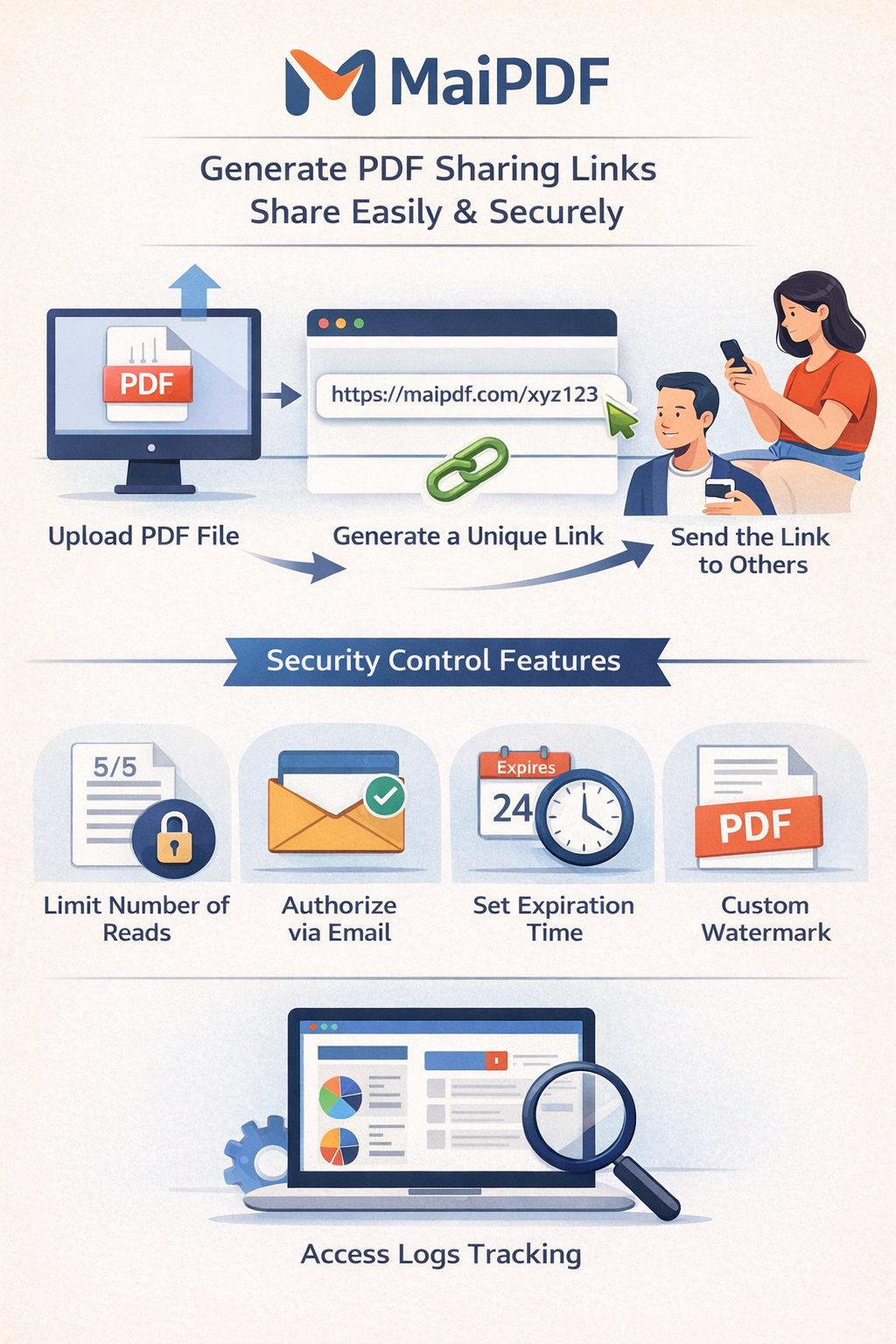
Upload once, share by link or QR, and keep control with access limits and view records. Recipients open the PDF in the browser—no app needed.
Article
Email attachments get saved, forwarded, and mixed with old versions. When you show a PDF online with a link, everyone sees the same file, you can update it without resending, and you can add view limits, expiry, and optional verification. No software install for your recipients.
Workflow
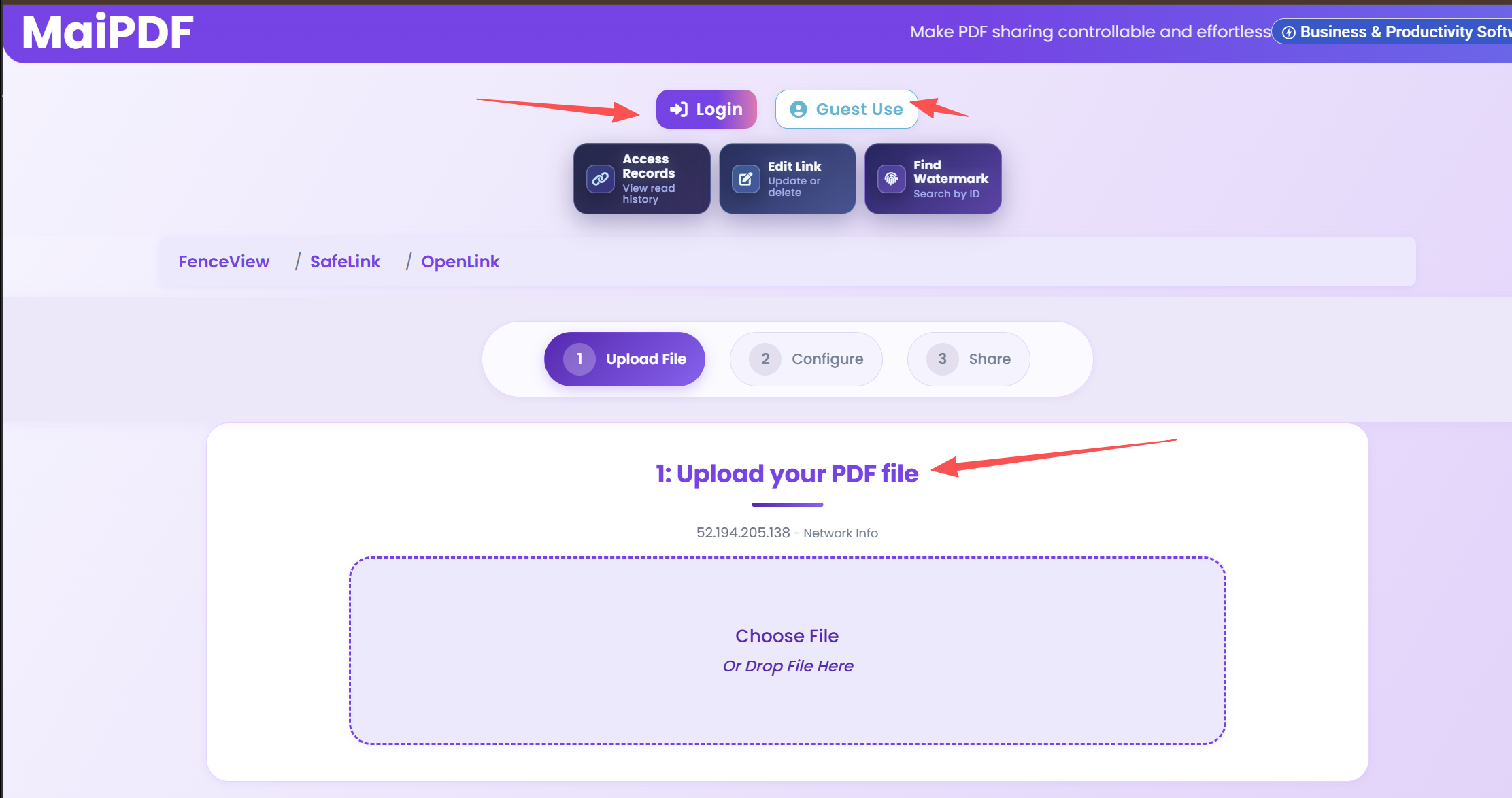
Upload your file and pick access mode. No account required.
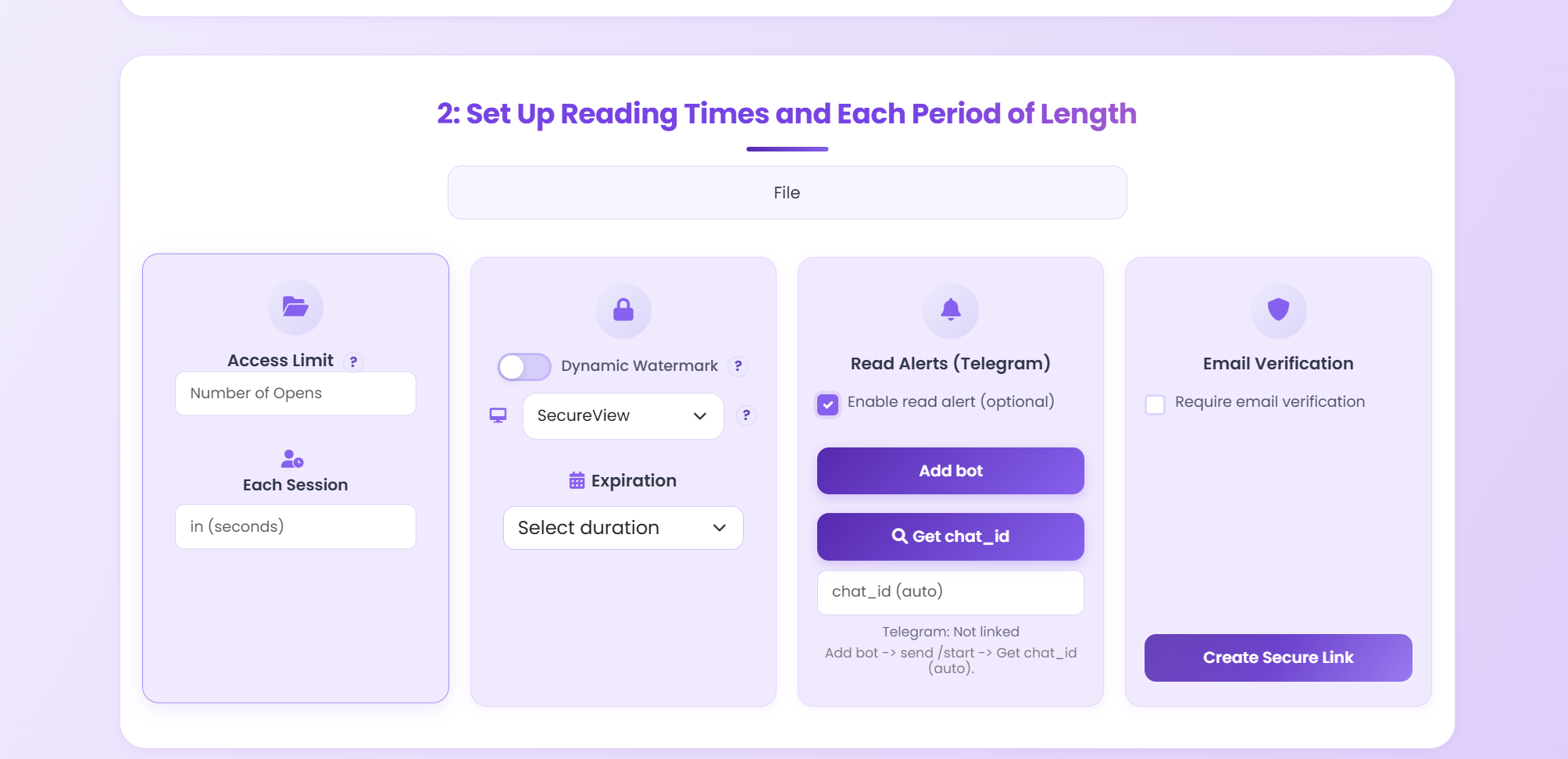
Set expiry, watermark, and verification if needed.
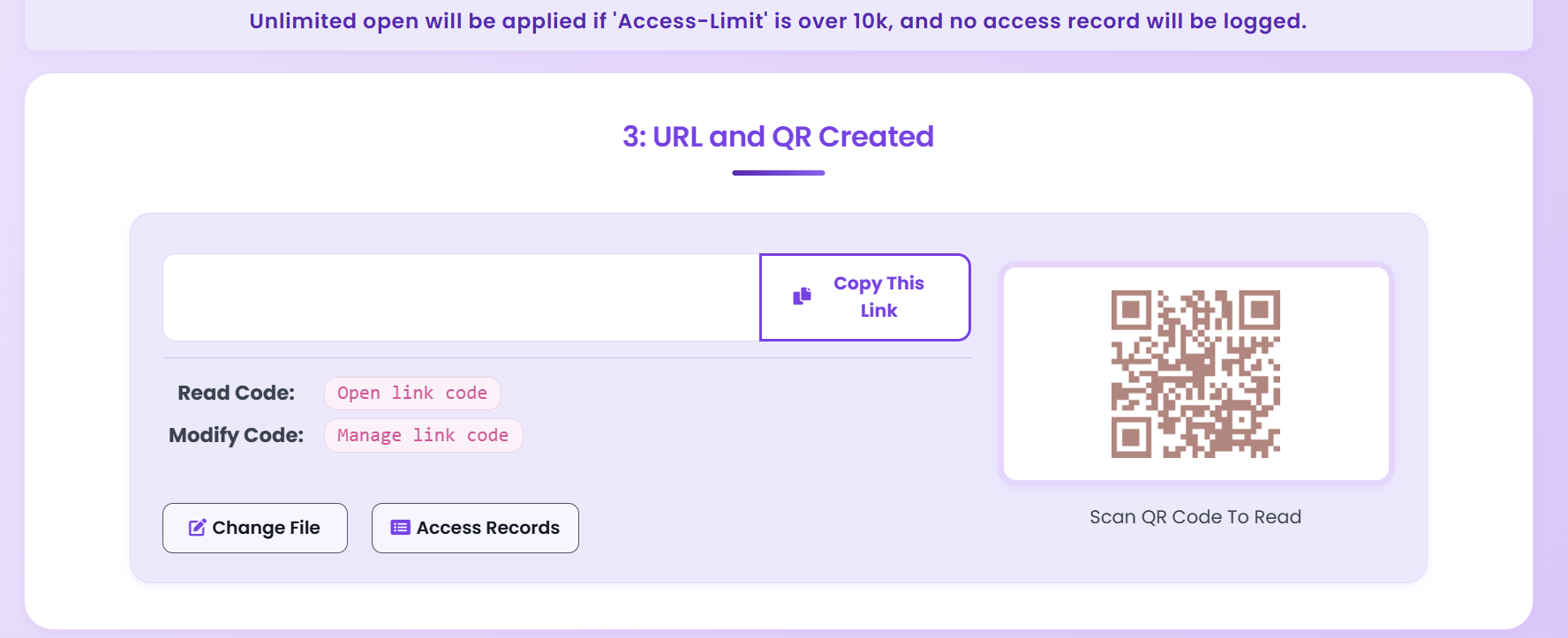
Send link or QR. Use access records to see opens.
Viewer
The PDF opens in the browser with zoom and page navigation. You can require email verification before reading sensitive files.
Execution
Playbook
| Scenario | Recommended controls | Follow-up action |
|---|---|---|
| Sales proposal | Password + 7-day expiry + watermark | Review open timeline before pricing follow-up |
| Investor update | Verified viewer + no-download + revoke switch | Disable access after board cycle ends |
| Training materials | QR sharing + view limits + printable allowed | Track completion and refresh old versions |
FAQ
No. The PDF opens in the browser on desktop and mobile. No app or download required unless you allow it.
Yes. After you create the link, you get a QR code to share. Anyone who scans it can open the PDF in their browser.
Read more
Secure sharing with control.
Security options explained.
View PDFs in browser.
Full control and tracking.
Updated MaiPDF protection path
SendPDFOnline pages now describe MaiPDF as a two-level product family: Online Cloud Sharing creates quick browser links and QR codes, while the MaiPDF App creates protected .maipdf packages for sensitive PDFs that need App DRM controls.
Upload a PDF, share a browser link or QR code, and keep read code / modify code management.
Package the PDF in the MaiPDF App with local encryption, license rules, expiry, open limits, and revoke control.
Use protected viewer, device binding, screenshot-aware controls, watermark trace, and license management where supported.
No web page can fully stop screenshots. MaiPDF App DRM is positioned as the stronger path: reduce casual copying, bind access to identity/devices, revoke licenses, and trace leaks with visible watermark information.
Free. No sign-up required.
Start Free